
Test Your Internet Speed
Free internet speed test
Run a free internet speed test to check your download and upload speed, ping, jitter, and packet loss. Test your connection in seconds and see what your results mean.
How to read your results
An internet speed test measures how quickly data moves between your device and a test server. Your result includes download speed and upload speed, plus ping, jitter, and packet loss when those measurements are available.
Those numbers describe two different things. Download and upload are about how much data your connection can move. Ping, jitter and packet loss are about how quickly and reliably it moves. A connection can be strong on one and weak on the other.
| Result | Unit | What it measures | You notice it in |
|---|---|---|---|
| Download | Mbps | How quickly data reaches your device. | Streaming, web pages, app and game downloads. |
| Upload | Mbps | How quickly data leaves your device. | Video calls, sending files, cloud backups, live streaming. |
| Ping | ms | The round-trip delay between your device and the test server. | Game responsiveness, call delay, how snappy pages feel. |
| Jitter | ms | How much ping changes over time. | Choppy audio, video freezes, stutter in games. |
| Packet loss | % | The share of test packets that do not successfully return. | Dropped words on calls, players teleporting in games. |
| Ping while busy | ms | Ping measured during the download and upload tests. | Lag when someone else in the home is downloading. |
People often use “bandwidth test” and “internet speed test” to mean the same thing. Technically, bandwidth is the capacity of a connection, while a speed test estimates the throughput your connection can deliver under the test conditions. In that sense this is a practical network speed test: it measures the path from your device to the test network and reports the results in Mbps and milliseconds. To focus on one direction, check your download speed on its own.
Is your internet speed good?
There is no single answer to what is a good internet speed. The right speed depends on how many people share your connection, how many devices are active, and what everyone is doing online. A person living alone who streams in HD can be perfectly happy on 25 Mbps. A household with four people, two 4K TVs, a gamer and someone on work calls will feel the strain at that speed.
The useful question is: what does everyone in your home do at the same time? Add up those activities, leave room for background updates, and compare that with your result.
| Download speed | Usually enough for |
|---|---|
| Up to 25 Mbps | One or two people browsing, streaming HD on one screen and making the occasional video call. |
| 25 to 100 Mbps | Small households streaming on a few screens, including some 4K, with calls and casual gaming. |
| 100 to 500 Mbps | Busy homes with several 4K TVs, people working from home and many connected devices. |
| 500 Mbps and up | Heavy users who download large games or files often, or many people online at once. |
For reference, the FCC’s 2026 Section 706 report uses 100 Mbps download and 20 Mbps upload as its benchmark for fixed broadband in the U.S. That benchmark is used to track broadband availability; it is not a measure of what every household needs.
Our guide to what counts as a good internet speed works through common household types, and the internet speed chart shows what each tier from 10 Mbps to 10 Gbps typically supports.
Download vs. upload speed
Download is data coming to your device; upload is data your device sends. Download is the direction most people use most: every video you watch and page you open is a download. Upload is the reverse: your camera feed on a call, photos syncing to the cloud, a file you attach to an email.
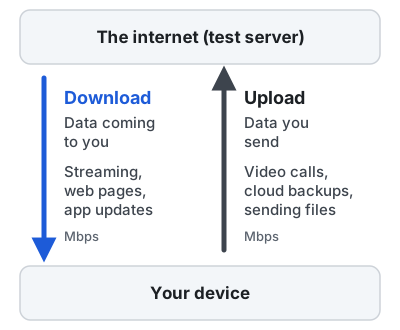
| Compared on | Download | Upload |
|---|---|---|
| Direction | From the internet to your device | From your device to the internet |
| Used for | Streaming, web pages, app and game downloads | Video calls, sending files, cloud backups, live streaming |
| On many plans | Cable and DSL plans often give ten times more download than upload, or more | Fiber plans are often symmetric, with equal speed both ways |
| Test it | Download speed test | Upload speed test |
An asymmetric plan is fine until someone starts a large backup or a few people join video calls at once. So what is a good upload speed? It depends on what you send online. Video calls, cloud backups, large file uploads, and live streaming can all benefit from more upload capacity.
Ping, jitter and packet loss
These three numbers explain most “my internet is fast but it feels bad” problems.
- Ping is the delay for a small message to reach a server and come back. Lower is better, and games and calls feel most responsive when it stays low. Learn what ping means
- Jitter is how much that delay jumps around. Calls and games cope with a steady delay much better than an unsteady one. More on jitter
- Packet loss is data that never arrives. Even small amounts can cause glitches in live audio and games. More on packet loss
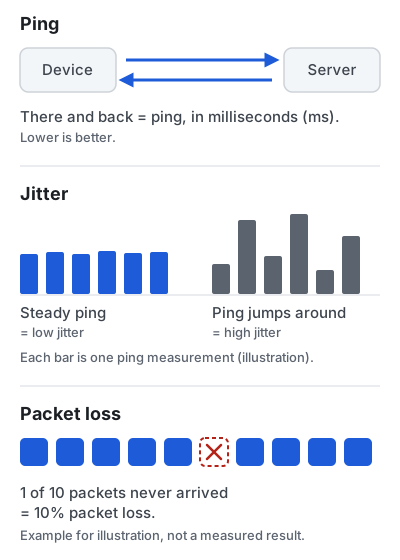
If ping rises sharply while the test is busy downloading, you may have bufferbloat.
Internet speed for common activities
These are the figures the services themselves publish, per stream or per call, not our own estimates. Multiply by the number of people doing each thing at once, and remember that meeting a figure does not guarantee smooth playback or a clear call if WiFi is unstable.
| Activity | Published requirement | What else matters |
|---|---|---|
| HD video (1080p) | 5 Mbps (Netflix, YouTube) | Stable WiFi to the TV |
| 4K video | 15 Mbps (Netflix), 20 Mbps (YouTube) | Your plan tier and device must support 4K |
| Group video call, 1080p | 3.8 Mbps up / 3.0 Mbps down (Zoom) | Upload speed, jitter, packet loss and stable WiFi |
| Online multiplayer games | Low bandwidth; no single published figure | Ping, jitter and packet loss matter most |
| Cloud gaming, 1080p 60 fps | 25 Mbps and under 80 ms latency (GeForce NOW) | Wired or 5 GHz WiFi recommended |
For gaming, an internet speed test is only part of the picture. Download speed matters for game downloads and updates, and cloud gaming services publish their own bandwidth and latency requirements. For multiplayer games, ping, jitter, and packet loss have a bigger effect on how responsive and stable play feels than Mbps does. Run a ping test, jitter test or packet loss test to look at each one, or read our guide to internet speed for gaming.
Full guides: speed for gaming · speed for streaming · speed for video calls · speed for multiple devices
How to get a more accurate result
Want to check your internet speed and get a number you can rely on? A single test is a snapshot, so a few simple habits make it more representative.
-
Test with a cable as well as WiFi. Ethernet can help isolate WiFi limitations, while a WiFi test shows the connection you actually use. Plug a laptop into the router to compare the two.
-
Pause other traffic. Stop downloads, cloud backups, game updates and streaming on other devices.
-
Close other tabs and apps on the device you are testing with.
-
Turn off your VPN unless you want to measure the VPN itself.
-
Test three times, a few minutes apart, and look at the typical result.
-
Test at different times of day, including the evening, when networks are busiest.
Step-by-step: how to test your internet speed, including how to record results to share with your provider, and how to test WiFi room by room.
Common causes of slow internet
- Weak WiFi. WiFi is a common cause of slow speeds in homes, especially when distance, walls, interference, or busy wireless networks limit the connection.
- Background traffic from other devices, especially updates, cloud backups and streaming.
- Network congestion at busy times on your provider’s network, often in the evening.
- An old router or device that cannot keep up with your plan.
- A modem or cabling problem inside your home.
- A provider-side issue, such as an outage or a fault on the line outside your home.
Why WiFi and Ethernet results differ
WiFi adds an extra wireless link between your router and your device, so a WiFi result is often lower than a wired one. Your internet provider delivers speed to your router; WiFi then carries data through the air, shares airtime with every other wireless device nearby, picks up interference from neighboring networks, and loses strength through walls and floors. Your device matters too, since an older laptop or phone may not support the faster WiFi standards your router offers.
| Compared on | WiFi | Ethernet (cable) |
|---|---|---|
| Link to the router | Through the air | A cable |
| Shared with | Every other wireless device nearby, sharing airtime | Not shared over the air |
| Slowed by | Distance, walls and floors, neighboring networks, older device WiFi | Far fewer local factors |
| A test shows | The speed you actually get on that device and spot | What your connection can deliver without WiFi as a limit |
If a wired result is close to your plan speed but WiFi is much slower, the fix is usually in your home network rather than your plan.
A speed test can act as a quick WiFi health check, but WiFi speed and WiFi signal strength are not the same measurement. Signal strength can affect the speed you receive, but a WiFi speed test measures the throughput reaching your device. To learn how to check WiFi speed around your home, use our room-by-room WiFi testing guide, or test your WiFi speed now. On cellular data instead? Use the mobile speed test.
How this test works
The test runs in your browser using Cloudflare’s open-source measurement engine and Cloudflare’s network, so your browser connects to a nearby Cloudflare location automatically. It measures download speed, upload speed, latency, jitter, and packet loss where available. It downloads and uploads files of increasing size, times each transfer, and reports a high-percentile result so a single slow request does not drag the number down. This site is independent and is not affiliated with or endorsed by Cloudflare.
A useful internet speed test should report real measurements, show more than a single Mbps figure, explain its method and present results you can understand. Every number you see here comes from your own test, never from estimates or placeholder values. If something can’t be measured on your network, such as packet loss behind some firewalls, we show it as not available. We don’t use analytics or advertising scripts, and we don’t store your results on our servers. No browser-based test is perfect: your device, browser, WiFi and the route to the server all affect the result.
Frequently asked questions
What is an internet speed test?
It is a short measurement of how fast data moves between your device and a test server. It reports download speed and upload speed in megabits per second (Mbps), plus ping, jitter and, where it can, packet loss. Together these tell you how your connection will feel for streaming, gaming and calls.
How does this speed test work?
Your browser downloads and uploads files of increasing size to Cloudflare’s network and times each transfer. It also sends many tiny requests to measure ping and jitter, and sends UDP packets through a relay to count any that go missing. The full details are on our methodology page.
What is a good internet speed?
It depends on how many people share the connection and what they do. Netflix and YouTube both recommend about 5 Mbps for one 1080p stream; a busy family with several 4K TVs and video calls needs far more. Our guide to what counts as a good internet speed walks through it.
Why are my results different every time I test?
Your speed changes with WiFi signal, other devices using the network, busy times in your neighborhood and the route to the test server. Run three tests a few minutes apart and look at the typical value rather than one number.
Should I test on WiFi or Ethernet?
Both, if you can. A wired test helps show what your connection delivers without WiFi as a limiting factor. A WiFi test shows what you actually get in a particular room. A big gap between the two usually points to your home WiFi rather than your provider. See how to test WiFi speed.
How often should I test my internet?
Test whenever something feels slow, after changing your router or plan, and a few times across a normal week if you are checking whether you get the speed you pay for. Evenings are often the busiest time, so include at least one evening test.
Ready to check your connection?
Need a quick internet connection test? Check your download, upload, and latency in under a minute on most connections.
Start TestSources
-
Internet connection speed recommendations Netflix Help Center
3 Mbps for HD (720p), 5 Mbps for Full HD (1080p), 15 Mbps for 4K UHD.
Checked October 2026
-
System requirements: recommended sustained speeds YouTube Help
20 Mbps for 4K, 5 Mbps for 1080p, 2.5 Mbps for 720p, 1.1 Mbps for 480p.
Checked October 2026
-
Zoom system requirements: bandwidth Zoom Support
1:1 720p video 1.2 Mbps up/down; group 1080p video 3.8 Mbps up / 3.0 Mbps down.
Checked October 2026
-
GeForce NOW system requirements NVIDIA
15 Mbps for 720p60, 25 Mbps for 1080p60, 45 Mbps for 4K; under 80 ms latency to a data center.
Checked October 2026
-
2026 Section 706 Report (FCC 26-55) Federal Communications Commission
Keeps the U.S. fixed broadband benchmark at 100 Mbps download / 20 Mbps upload.
Checked October 2026
-
@cloudflare/speedtest (measurement engine source and documentation) Cloudflare
How download, upload, latency, jitter and packet loss are measured by the engine this site uses.
Checked October 2026